User guideAdding a medicine
Adding a medicine
There are two short steps: check the details, then set the schedule. The camera can fill in the name and strength for you.
Start a new medicine
-
Open the Meds tab and tap the + at the top.
If you have no medicines yet, tap Add your first medicine on Today or Meds instead.
Adding for someone else or a pet? Switch to their profile first, so the medicine goes to the right one.
-
Read the label, or type it in.
With the camera: lay the box flat in good light and hold the iPhone over the label, with the name and strength in the frame. The app takes the photo by itself when they are clear, or you can tap Take photo now. The first time, your iPhone asks if DoseDoodle may use the camera.
From a photo you already have: tap Choose a photo.
By hand: tap By hand at the top, or Enter details by hand at the bottom.
The label is read on your iPhone. It works offline, and the photo stays on your phone. If the app says "Could not read the label", tap Try again or Enter by hand.
Step 1 of 2: check the details
If the label was read, the name and strength are filled in. Check each one against the box before you go on.
-
Name.
Type the name, or tap one of the suggestions under the box.
-
Each dose.
Set how many, and choose what you measure it in: tablet, capsule, gummy, chew, mL, units, puffs, drops, cream, patch or other. Each has its own small picture on Today, such as a pill, a capsule, seven circles for gummies and chews, a vial for mL, a syringe for units, an eyedropper for drops and a drop for cream. The line underneath shows what your reminders will say, such as "Take 1 tablet".
-
Icon (optional).
The row shows the picture in use. Tap it to open all the pictures, with the one for what you measure the dose in highlighted. Tap another to give this medicine its own, from tablets and capsules to carrots and teddy bears, and the row closes again. Tap the highlighted one to go back.
-
Strength on the label (optional).
For example 500 mg. If there are two strengths of the same medicine, add each one separately.
-
Picture of the box (optional).
A photo helps you recognise the medicine in the list. It stays on your phone.
-
What is it for?
Tap Other to type a condition, if you want one on your record. It is private to you and never appears in a reminder or on your Lock Screen.
-
Prescribed by (required).
Choose the doctor, or tap Add doctor to enter a new one with all their details in one go: name, role, the practice or hospital (Look up fills in its address and phone number), and your patient ID if you want it. Or choose No doctor for vitamins and other things you buy yourself. For a pet this reads Vet.
-
Tap Next: set the schedule.
If the button stays grey, the name, the dose or Prescribed by still needs filling in, or you already have this medicine at the same strength.
Step 2 of 2: set the schedule
-
Choose how it repeats.
Daily: every day.
Days of the week: only on the days you choose.
Every few days: every other day, weekly, fortnightly or monthly.
Cycle: taken for a number of days, then a break, then again. You can ask for a reminder the evening before it starts again. Today shows which day of the cycle you are on, and on the break days how long until the next cycle starts.
As needed: no reminders. You log a dose whenever one is taken.
-
Set the times.
Tap a time to change or remove it, and tap Add time for each further dose in the day. You get a reminder at each time.
-
Food (optional).
Choose With food, Before food or After food if your label says so, or leave it on No instruction. For before and after you can also say how long, such as 30 minutes before or 2 hours after, with the plus and minus buttons. Type what your label or pharmacist says: DoseDoodle only shows it with the dose, on Today and the medicine's page, and never suggests a time. It does not change your reminder times, so set the dose time yourself. If you turn on Food tracking in Settings, a before or after food time also adds a meal to Today, and a late meal can move the dose: see Day to day use.
-
Side effects (optional).
Tap Add to type any you want to keep track of. For a person's medicine you can also tap Look up online to see the common ones from the US FDA drug label. That sends the medicine's name, and nothing else, and only when you tap it.
-
Supply (optional).
Enter the Amount in the box and DoseDoodle counts down as doses are logged. Then set Remind me to reorder to the number of days' warning you want. Leave it at Not counting if you would rather not track supply.
-
Tap Save medicine.
The medicine appears in Meds, its doses appear on Today, and its reminders are set.
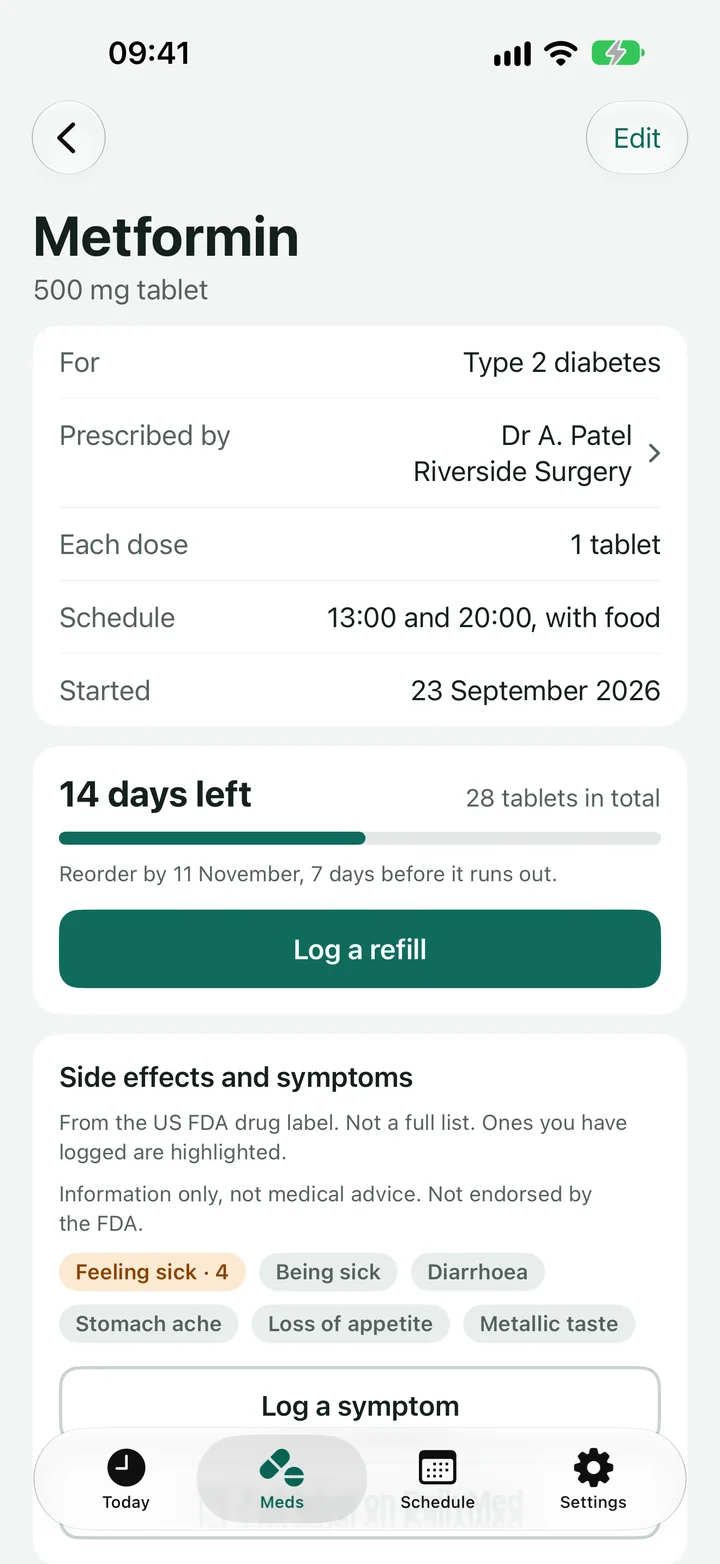
Changing it later
- A detail or the times are wrong: open the medicine from Meds and tap Edit.
- The dose has changed: open the medicine and tap Change dose, so earlier days keep the dose you were on then.
- A new box has arrived: open the medicine and tap Log a refill.
- You no longer take it: open the medicine and choose Stop taking. Reminders stop, and what you logged stays in your Schedule and reports.
Next
Still stuck?
Write to support@dosedoodle.com and I'll help.
DoseDoodle is a reminder and record-keeping tool. It does not give medical advice. Always follow what the doctor, pharmacist or vet has said, and read the leaflet that comes with the medicine. Side effect information comes from US FDA drug labels, is not a full list and is not endorsed by the FDA.