User guideDay to day use
Day to day use
Most days you only need the Today tab. This page covers logging doses, skipping, extra doses, symptoms and putting a mistake right.
Log a dose
Today lists the day's doses in order, grouped by time. A card at the top says how many are done, such as "1 of 6 doses done", and when the next one is due. A dose that is due or late opens out into a larger card.
-
Tap Take now.
The dose is logged as taken at this moment. A bar appears at the bottom with Undo, which stays for a few seconds.
-
Taken a different time?
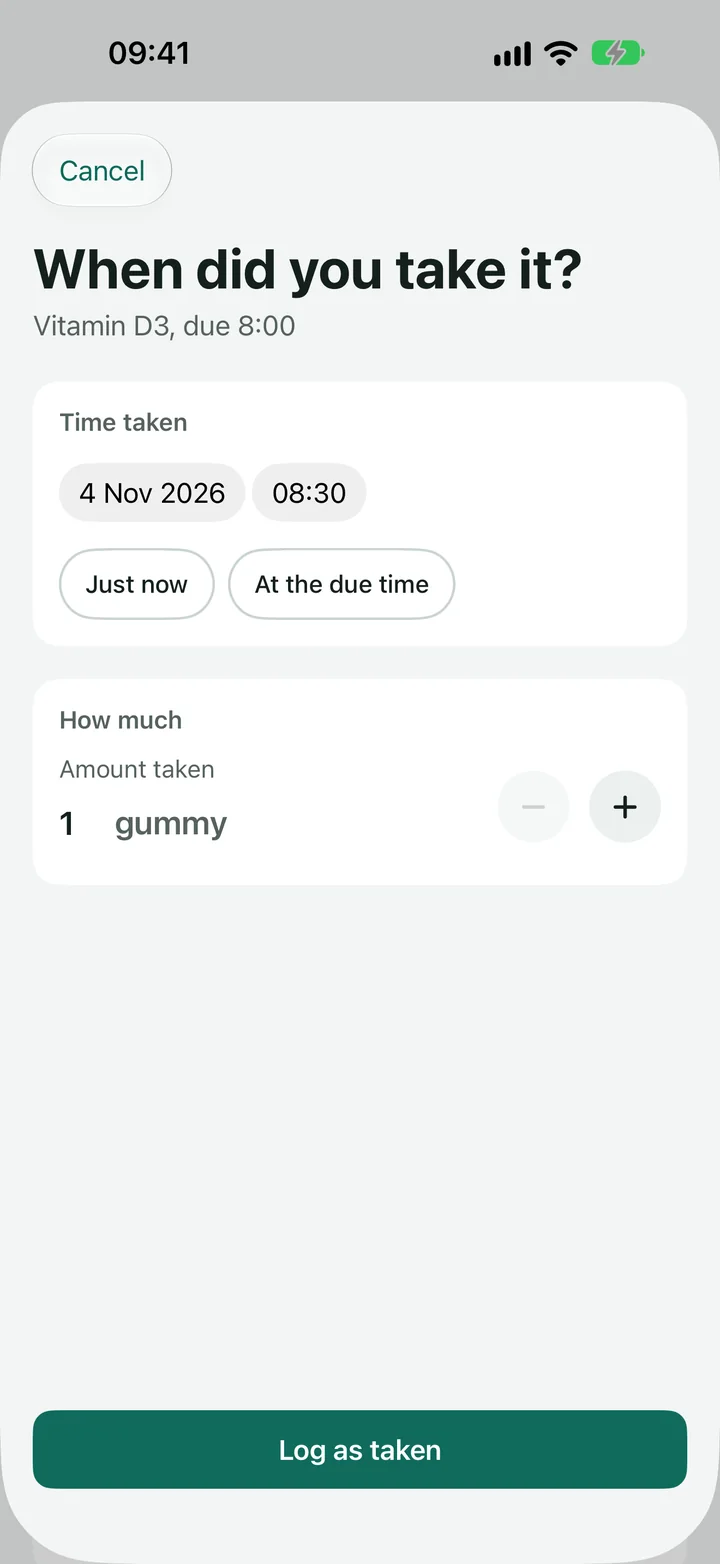
Tap Taken at another time. Choose the date and time, or tap Just now or At the due time, then tap Log as taken.
-
Taken a different amount?
Tap Taken a different amount, change the number with the plus and minus buttons or by typing it, then tap Log as taken. This is for that one dose only. The next one goes back to the amount on the schedule, and Today shows "3 tablets (scheduled 2)" on the row so you can see the difference.
-
Several medicines at once?
When two or more in the same time slot are waiting, Take all appears at the top of the slot, with the number. It logs them all as taken now.
A dose that is not due yet shows only its time. You can still tap it, or press and hold it, to log it early.
A medicine on a cycle
If a medicine is taken for some days and then paused (for example 14 days on, 7 off), its dose on Today says which day of the cycle you are on, such as "Day 3 of 14". The Meds tab shows the same on that medicine's page, under Today in the cycle.
On the days of the break there is nothing to take. Today shows an Off cycle section instead, with the day of the break and when the next cycle starts, for example "Break day 3 of 7. The next cycle starts in 5 days, on Tuesday 24 November."
A dose you missed
If a dose is not logged for a while after its time, it turns amber and says Missed. You can still tap Take now, or use Taken at another time if you took it earlier and forgot to log it.
How long that wait is can be changed in Settings, under Reminders, with Missed after.
Meals, if you track food
This is optional and off until you turn on Food tracking in Settings. With it off, food is only a note on each medicine, such as "2 hours after food".
With it on, a medicine taken before or after food with a time (set in the schedule when you add or edit it) gets a meal row on Today and on the Schedule. The row is worked out from the medicine: a 14:00 medicine "2 hours after food" expects a meal at 12:00, shown as Lunch. The meal card works like a dose card: quiet until half an hour before, green and "Due now" when it is time, and amber "Not logged" once a while has passed. Tap Log meal when you eat, Ate at another time to choose the time, or Not eaten if you skipped it. The time screen is the same as for a medicine, and touching and holding a meal gives the same kind of menu as a dose, including Undo this log. The widgets name the next meal too, when no dose is due. Tap the time you logged to change it, say you did not eat, or remove it.
- If a medicine comes after the meal and you ate later than expected, the medicine moves by the same amount. Its row says "Now 14:40, moved from 14:00" and its reminder moves too.
- If the medicine comes before the meal, nothing moves. The meal is logged for your record.
- A meal you do not log never moves a medicine, so forgetting to log cannot delay a reminder. A meal marked not eaten does not move it either.
- Several medicines tied to the same meal share one meal row.
DoseDoodle only follows the times you typed in from your label or pharmacist. It never suggests a gap.
Skip a dose
Skipping is normal and nothing to feel bad about. The app says "Skips are fine."
-
Tap Skip on the dose.
A reminder also has a Skip button. See Reminders.
-
Choose a reason, if you want one.
The choices are Forgot, Felt unwell, Side effect, Ran out, Doctor advised and Other. The reason is optional. You can also add a note about the skip.
-
Felt unwell or Side effect?
The app then asks what you noticed, so you can record it in the same step. If several medicines are being skipped, it asks whether you think one of them is linked. Not sure is the first choice, and the app never decides that for you.
- Tap Save skip.
The same screen lets you pause a medicine for a while. That is covered in Pauses and dose changes.
Log something not on the schedule
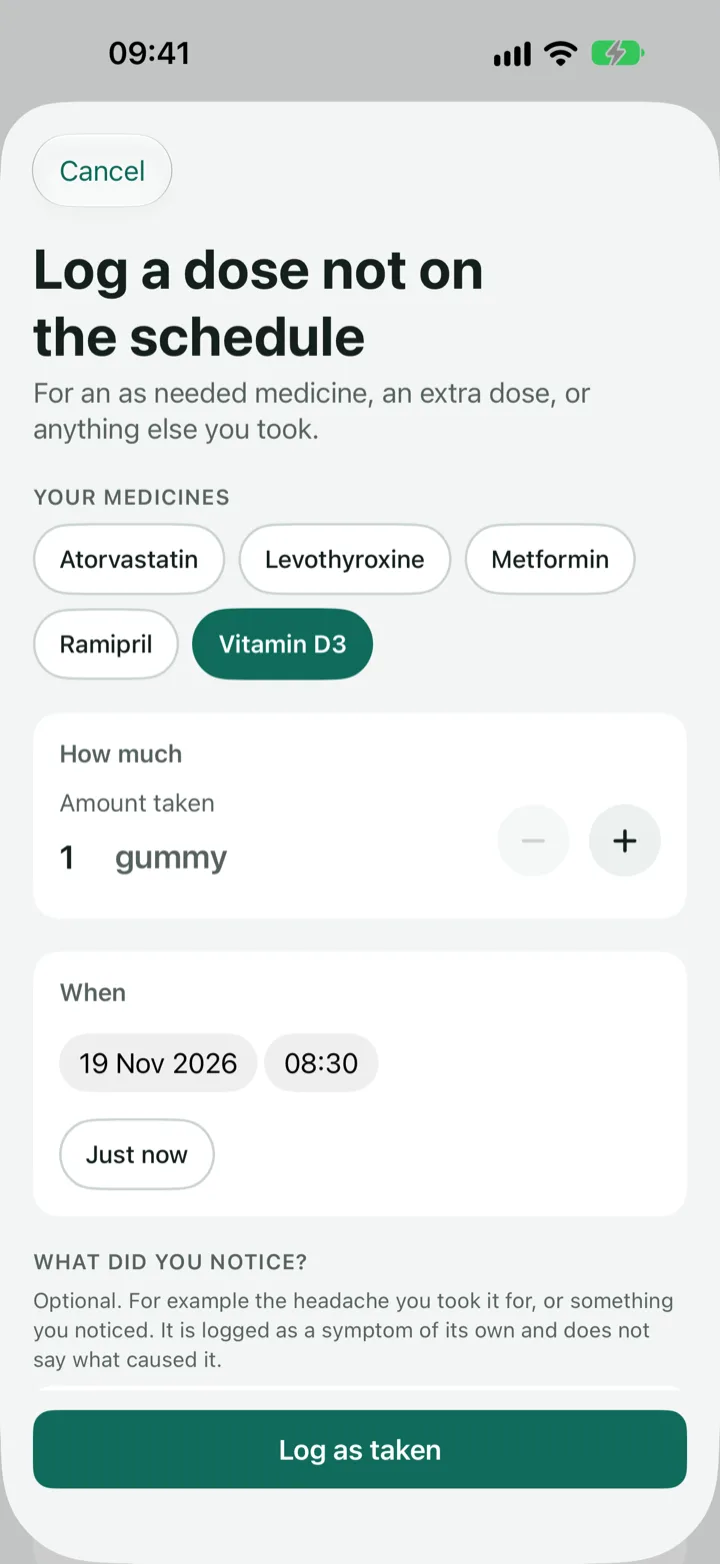
Use this for an as needed medicine, an extra dose, or anything else you took.
- Tap the + at the top right of Today.
-
Choose the medicine.
As needed medicines are listed first, then the rest of your list. If it is not there, tap Not listed? Add a medicine.
-
Check how much, and when.
The amount starts at the usual dose. The time starts at now, and you can set an earlier time but not a later one.
-
Add a symptom or a note (optional).
For example the headache you took it for. It is saved as a symptom of its own and does not say what caused it.
-
Tap Log as taken.
The dose shows on Today marked "Not scheduled". Tap it to change the time or amount, or to remove it.
Log a symptom
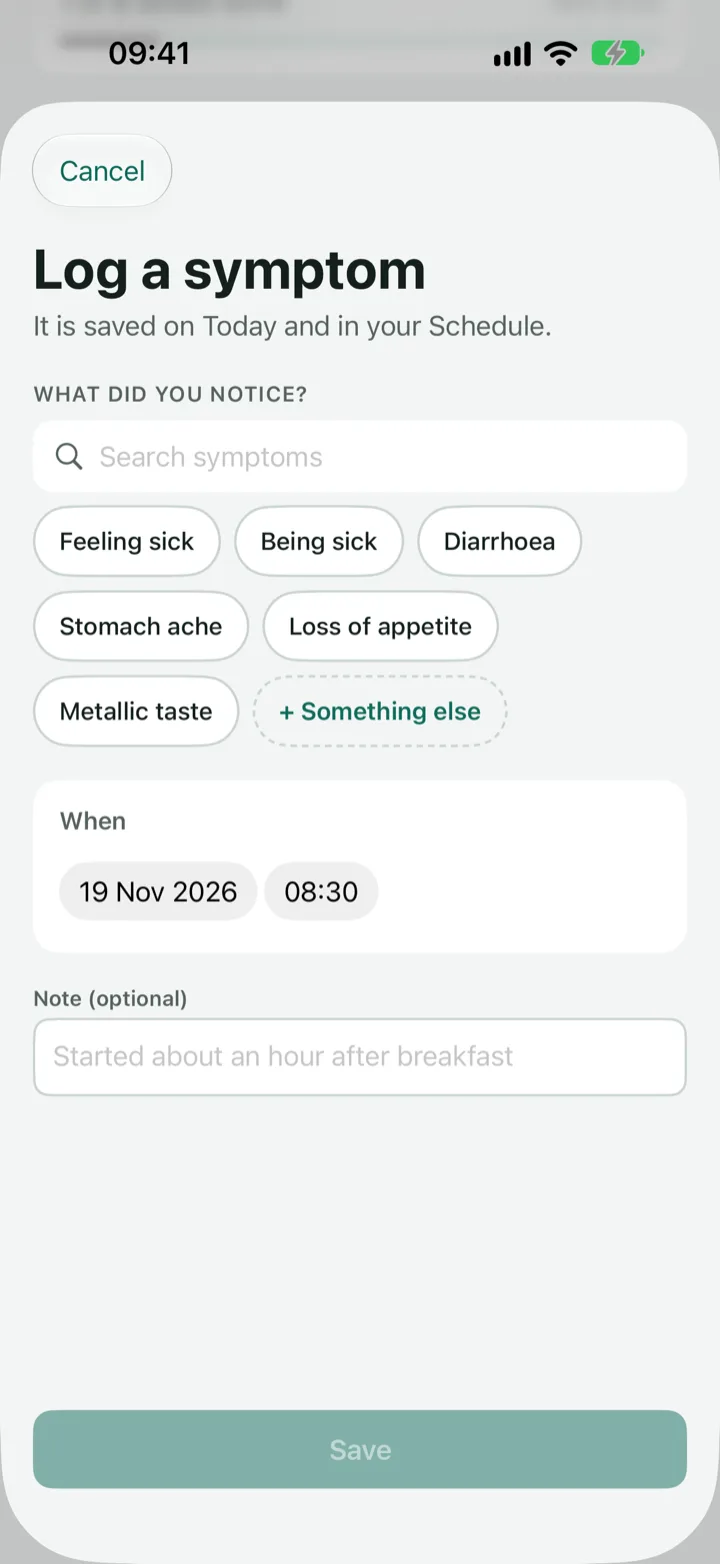
Tap Log a symptom at the bottom of Today or the Schedule. It is also on each medicine's page.
-
Say what you noticed.
Search the list, tap a suggestion, or add your own with Other. You can choose more than one.
-
Choose how strong it was.
Mild, Moderate or Severe. If you choose Severe, the app reminds you to call 111, or 999 in an emergency. For a pet it says to contact your vet straight away, or an emergency vet.
-
Set when it happened and add a note (optional), then tap Save.
It shows on Today and in your Schedule, and goes into your report if you include symptoms.
Logging from the main button does not link the symptom to any medicine. The only time the app links one is when you skip a dose with the reason Felt unwell or Side effect.
The Schedule tab
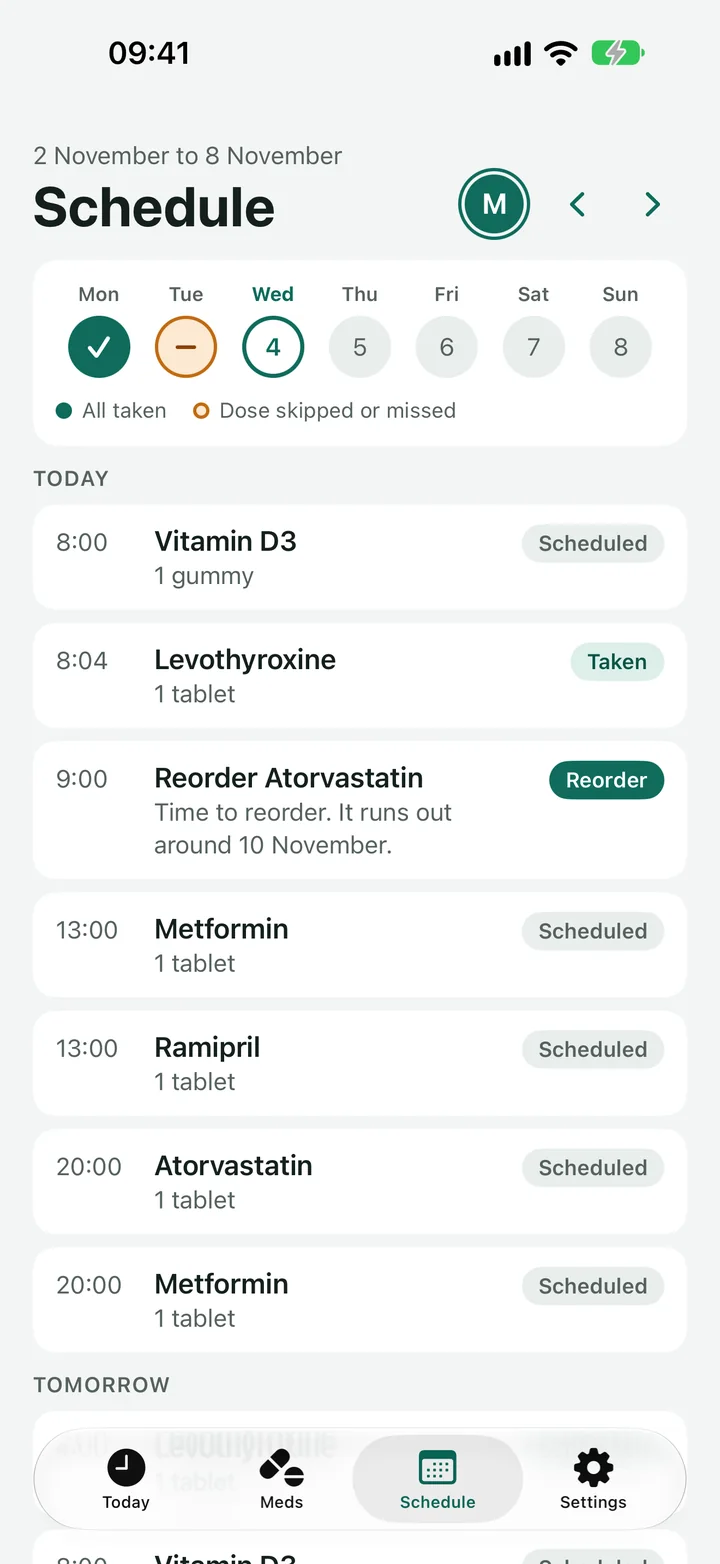
The Schedule shows a week at a time, with the days across the top. A green tick means every dose that day was taken. An amber dash means a dose was skipped or missed. Use the arrows to move between weeks.
Under the week is a list, day by day, of what was scheduled and what you logged, with any symptoms and reorder dates. Tap a dose on today or an earlier day to log it, change it or skip it. Doses in the future cannot be logged.
Putting a mistake right
- Wrong time or amount: tap the green Taken label on the dose and change it. You can also press and hold the dose and choose Change time or amount taken.
- Logged by mistake: press and hold the dose and choose Undo this log. It goes back to waiting.
- Just now: tap Undo in the bar at the bottom.
- A symptom you do not want: tap it on Today or the Schedule and choose Remove this symptom.
- An earlier day: open the Schedule, go to the day, tap the dose and choose from the list.
Next
Still stuck?
Write to support@dosedoodle.com and I'll help.
DoseDoodle is a reminder and record-keeping tool. It does not give medical advice. Always follow what the doctor, pharmacist or vet has said, and read the leaflet that comes with the medicine.