User guideReports
Reports
A report shows what you took and when, with any symptoms, on one or two pages. It is made on your iPhone, and nothing leaves your phone until you share it.
Each doctor can have your Patient ID with them, such as an NHS or hospital number. Every doctor's system has its own number for you, so you add it to that doctor: on the Meds tab choose By doctor, tap the doctor, tap Edit and fill in Your patient ID with this doctor. A report for that doctor prints it under the title, and a general report prints it above that doctor's medicines. CSV exports get Prescriber and Patient ID columns when any doctor in the file has one. Leave it empty and nothing is printed.
A doctor can also have a Website and an Email, typed in the same Edit screen. A report for that doctor prints them under the patient ID, such as "Website: riverside.example.com · Email: surgery@example.com", and a general report prints them above that doctor's medicines. They are not in the CSV.
Make a report
-
Open the report screen.
There are three ways in:
From the Schedule: scroll to the bottom and tap Doctor report. For a pet's profile the button says Vet report.
From Settings: under Export, tap Report for my doctor.
From a doctor: on the Meds tab, choose By doctor, tap the doctor's name, then tap Share report. That doctor's medicines are ticked for you.
-
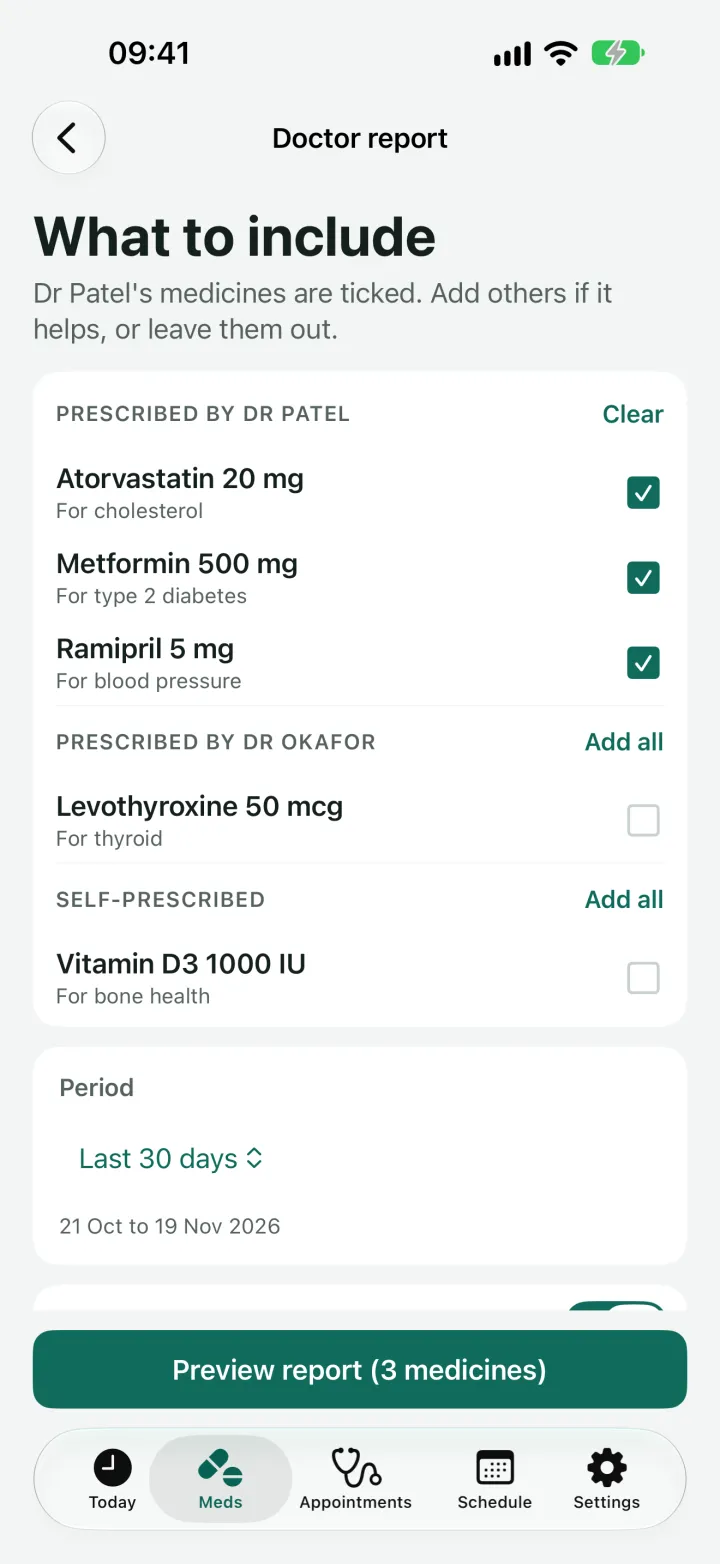
Choose the medicines.
The list is grouped by who prescribed each one. Tick the ones to include. Clear and Add all at the top of each group do the whole group at once. Leave out anything you want to keep private.
-
Choose the period.
The choices are Last 7 days, Last 30 days, Last 3 months, This week, This month, Last month and Choose dates. It starts on Last 30 days. With Choose dates, set a From and a To date. The line underneath shows the exact days covered.
-
Set the three switches.
Include symptoms is on to begin with. Include my notes is off, so nothing you wrote leaves your phone unless you turn it on. Include appointments is off too. Turn it on to list the profile's appointments in the period, each with its type, doctor and place, and with its note if notes are on.
-
Tap Preview report.
The button shows how many medicines are included. It stays grey if none are ticked.
Summary or Detailed
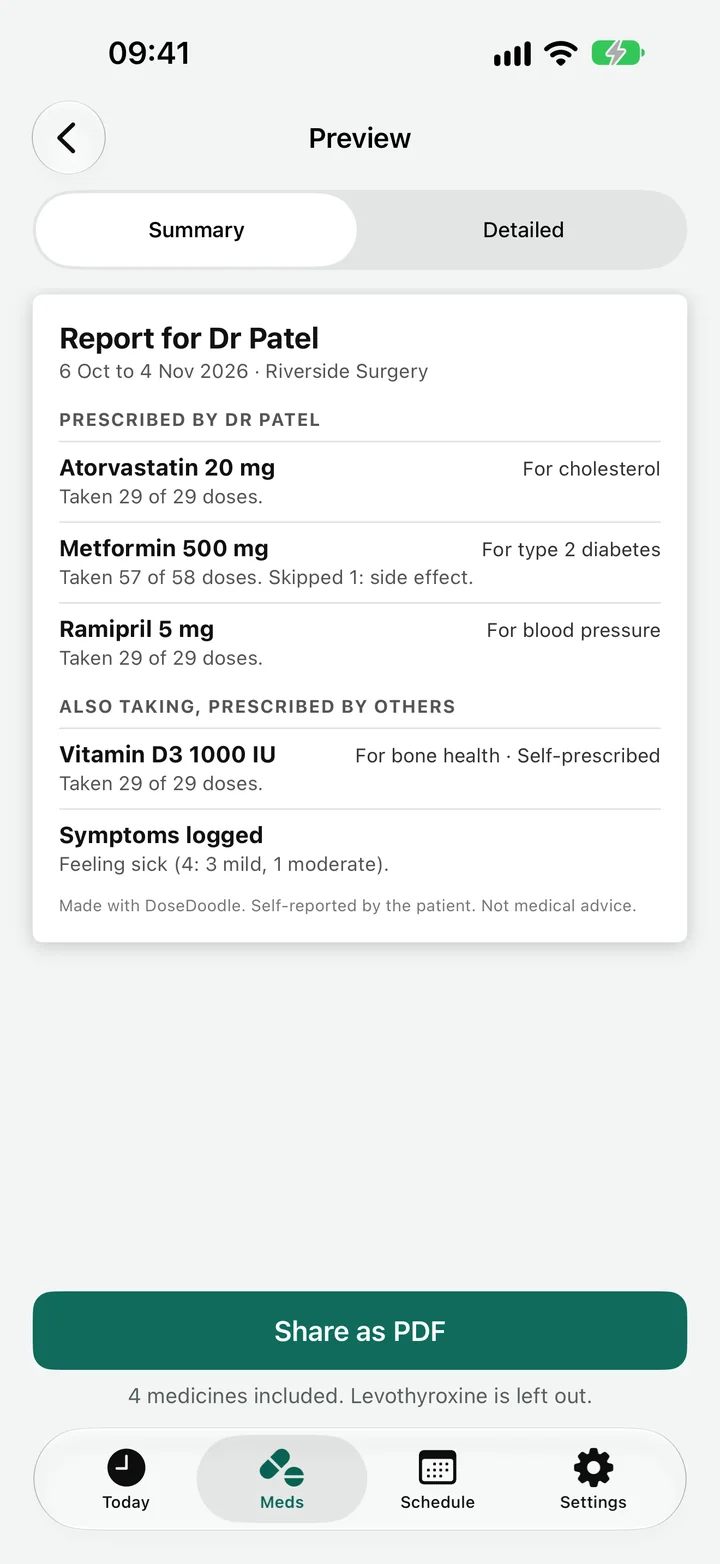
The preview has two views, which you choose at the top.
- Summary lists each medicine with the reason you take it, how many doses you took out of how many were due, and the reasons for any you skipped. Appointments you chose to include are listed under their own heading, and symptoms at the bottom.
- Detailed lists every dose, day by day, newest first, with the time, the amount taken, any notes you chose to include, and symptoms. Pauses, dose changes and appointments in the period appear on the day they happened.
The text on the preview is small, because it is the size it will be on the printed page. To read it more easily, pinch to zoom in, or use the Zoom in and Zoom out buttons at the top. Zooming only changes what you see here. The PDF you share is not changed.
Share it
-
Tap Share as PDF.
In the Detailed view the button says Share detailed PDF.
-
Choose where it goes.
The usual iPhone share sheet opens, so you can send it by email or message, save it to Files, or print it. Under the button, the app lists which medicines are included and which are left out.
The report says at the bottom that it was made with DoseDoodle, who recorded it, and that it is not medical advice.
Export your log as a spreadsheet
If you want every dose and symptom, one row each, for a spreadsheet or your own records:
-
Go to Settings and tap My log, under Export.
If you have more than one profile, you are asked whose log to export, or "Everyone, with a Profile column".
-
Choose the period.
The same choices as a report, plus All time, which is chosen to begin with. Turn on Include appointments if you want a row for each appointment in the period, with four extra columns for the appointment, its type, the doctor and the place. Tap Export CSV.
-
Share or save the file.
The iPhone share sheet opens, as it does for a report.
Next
Still stuck?
Write to support@dosedoodle.com and I'll help.
DoseDoodle is a reminder and record-keeping tool. It does not give medical advice. Always follow what the doctor, pharmacist or vet has said, and read the leaflet that comes with the medicine.