User guideAppointments
Appointments
Keep doctor and vet visits, scans, blood tests and treatments in one place, with a reminder a week before and a day before. If you like, you can also keep them in step with a calendar.
Add an appointment
-
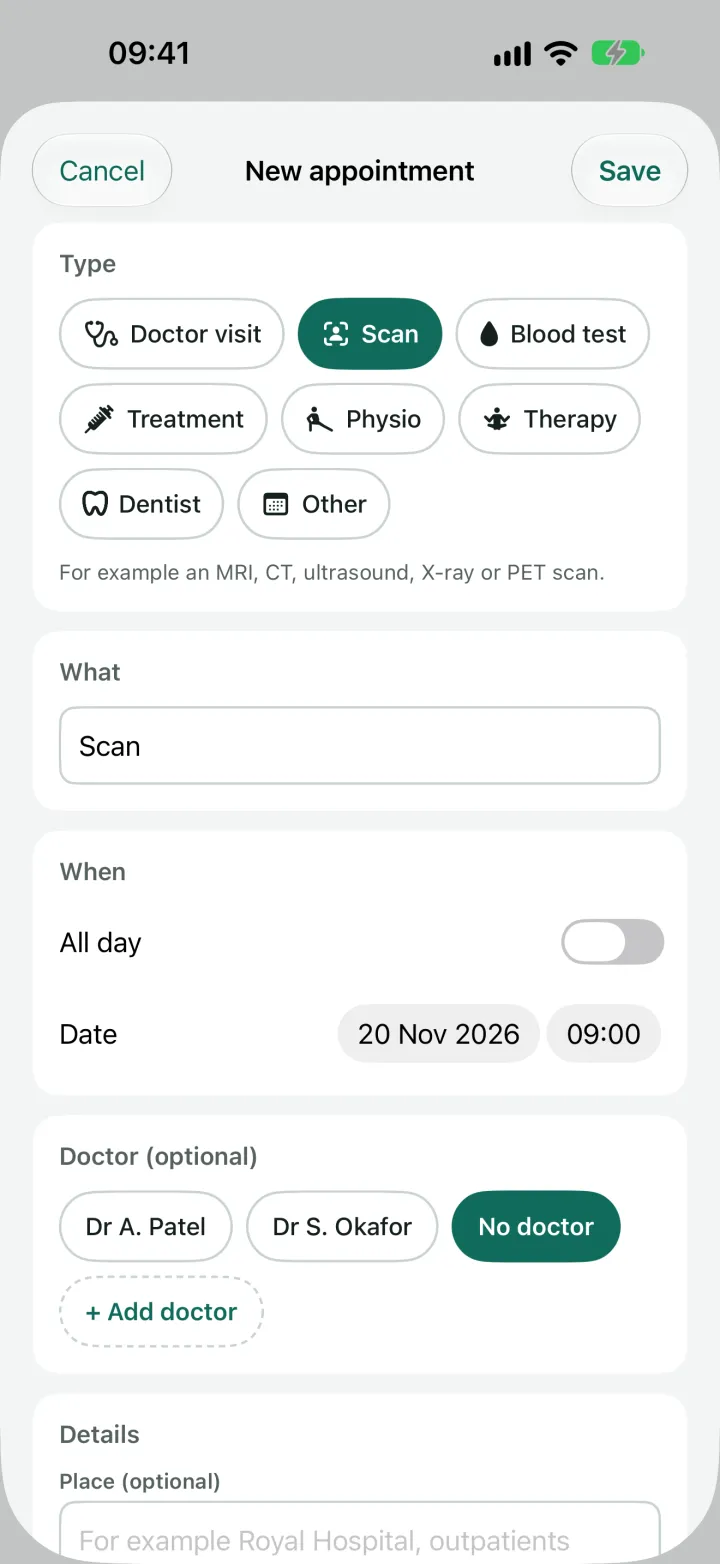
Open the Appointments tab and tap the + at the top.
Appointments belong to the profile you are looking at, so a pet's vet visit sits with the pet.
-
Choose the type.
The choices are Doctor visit (it says Vet visit for a pet), Scan for an MRI, CT, ultrasound, X-ray or PET scan, Blood test, Treatment, Physio, Therapy for acupuncture, counselling or massage, Dentist and Other. Each has its own icon. The type fills in the title for you, and you can write your own instead, such as "MRI, head". The type is only a label: DoseDoodle gives no advice about any of them.
-
Set the date and time.
Turn on All day if it has no particular time.
-
Choose the doctor or vet, if you like.
Pick one from your list, or tap + Add doctor to add a new one with all their details in one go.
-
Add the place and a note, if you like.
Tap Find place to look up a hospital, clinic or postcode: type a name or postcode, tap Search and choose a result to fill in the place. It sends what you typed to Apple Maps, only when you tap, and nothing else. Once there is a place, Open in Maps shows it in the Maps app. A doctor's page has a Maps button for their practice too, next to Call. To give a doctor an address, type the practice or hospital when you add or edit them and tap Look up: choose a result and it fills in the proper name, the address, and the phone number if Apple Maps has one (a phone number you already typed is kept). Hospitals are offered first, so a search for "Marsden" finds the Royal Marsden before a village of that name. A postcode on its own often finds the area rather than a street, so the name of the place usually works best.
-
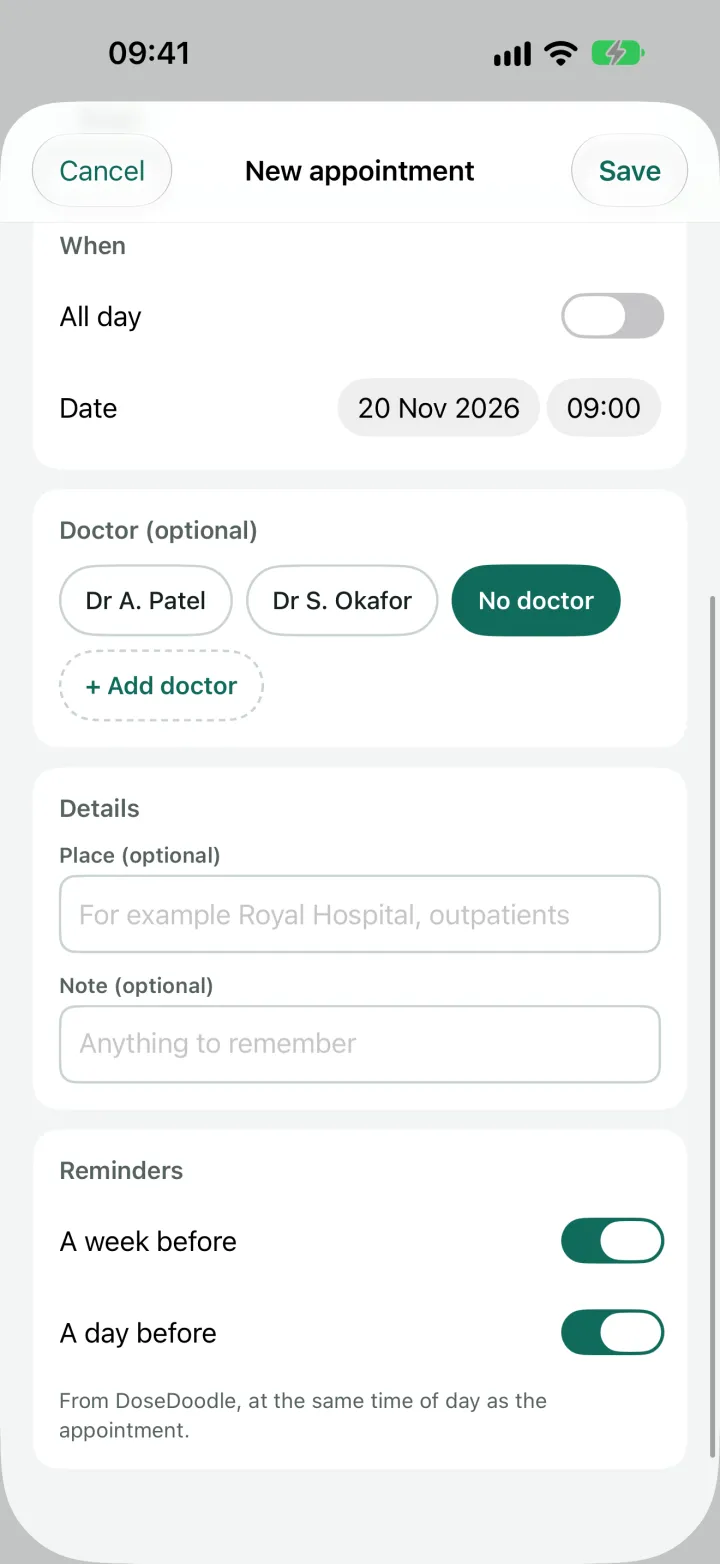
Check the reminders, then tap Save.
Both reminders are on to begin with. Turn either off for this appointment if you do not want it.
Reminders
DoseDoodle reminds you a week before and a day before, at the same time of day as the appointment. A 10:30 appointment on Thursday 26 November reminds you at 10:30 on Thursday 19 November and again at 10:30 on Wednesday 25 November. An all day appointment reminds you at 09:00.
- If you add an appointment less than a week ahead, there is no week reminder. A reminder whose time has already gone is never sent.
- The reminder says whose appointment it is and when, then your title, the doctor and the place. A week ahead it also gives the date and time.
- Tap a reminder to open that appointment.
- Appointment reminders have no Taken or Skip buttons. They are ordinary reminders, so a Focus can hide them, unlike a dose that is due.
- With Hide medicine names on, an appointment reminder leaves out the title, doctor and place. It still says whose appointment it is and when. See Privacy and app lock.
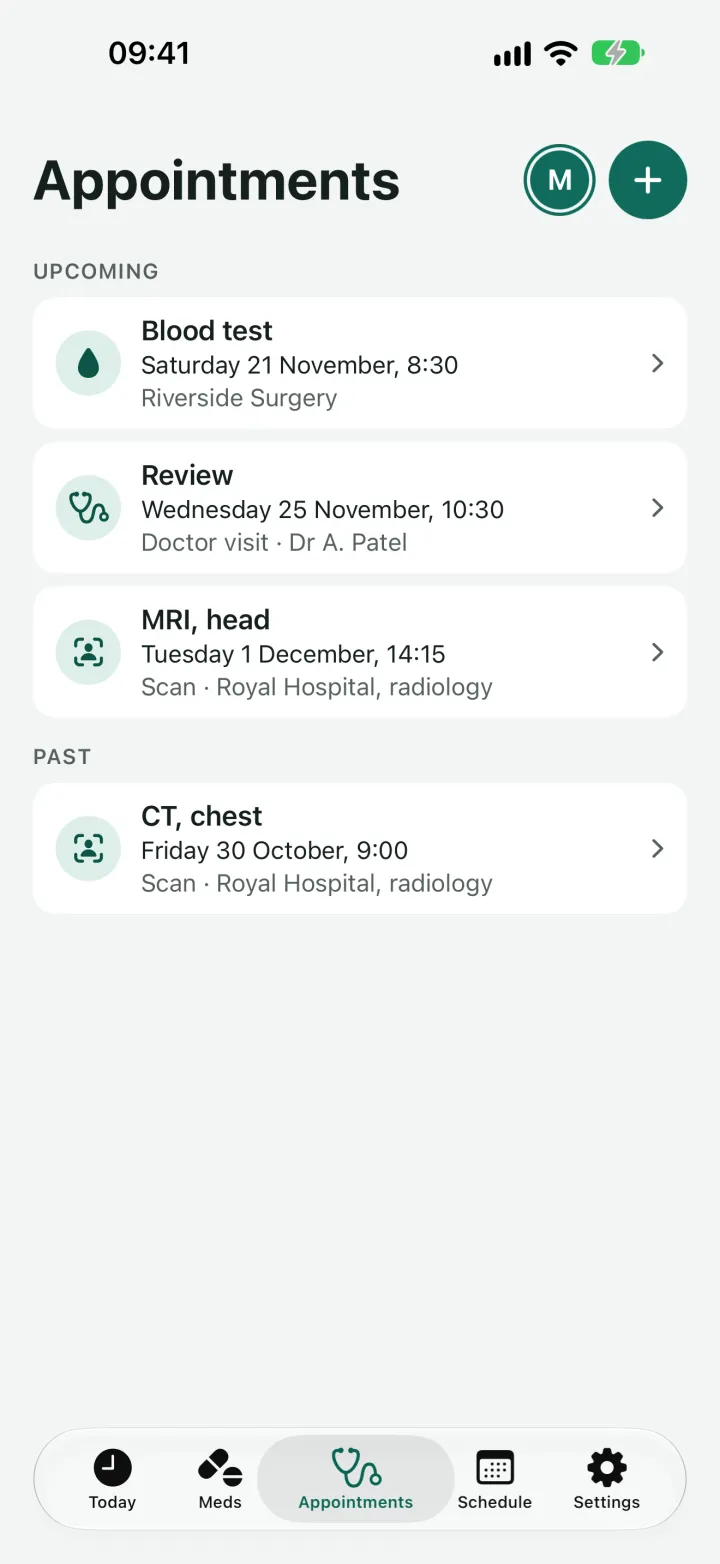
Where you will see your appointments
- The Appointments tab lists them, the next ones first and past ones below. Tap one to change it.
- Today shows the next appointment when it is within two weeks: at the top when it is today, and at the bottom, below your doses, when it is later.
- A doctor's page (on the Meds tab, choose By doctor and tap the doctor's name) lists the medicines they prescribed, then the next appointments with that doctor, and has an Add appointment button. A doctor with no medicines is listed there too. The Call and Maps buttons call the doctor and open their practice in Maps. Tap Edit on that page to change the doctor's details: name, role, the practice or hospital (Look up can fill in the address and phone number), the address, the phone number, a Website and an Email (they show as Website and Email buttons under Call and Maps on the doctor's page, and open Safari or Mail when tapped), and the Patient ID that doctor knows you by. To remove a doctor, tap Edit, then Delete doctor. Their medicines and appointments stay, with no doctor.
- The Schedule lists each appointment on its day, among the doses. An appointment is never counted as a dose, so it never shows as missed.
Change or delete an appointment
Tap it in the list, change what you need and tap Save. To remove it, tap Delete appointment at the bottom. Moving it moves its reminders too.
Put appointments in a report or a spreadsheet
When you make a doctor report, turn on Include appointments to list the appointments in the period, with their type, doctor and place. In My log (under Export in Settings), the same switch adds a row for each appointment. Both are off until you turn them on. See Reports.
Keep appointments in a calendar
This is optional and off until you turn it on. DoseDoodle keeps your appointments and one calendar on your iPhone in step: add or change one in either place and the other follows. If the calendar belongs to a Google account on your iPhone, Google keeps a copy too.
-
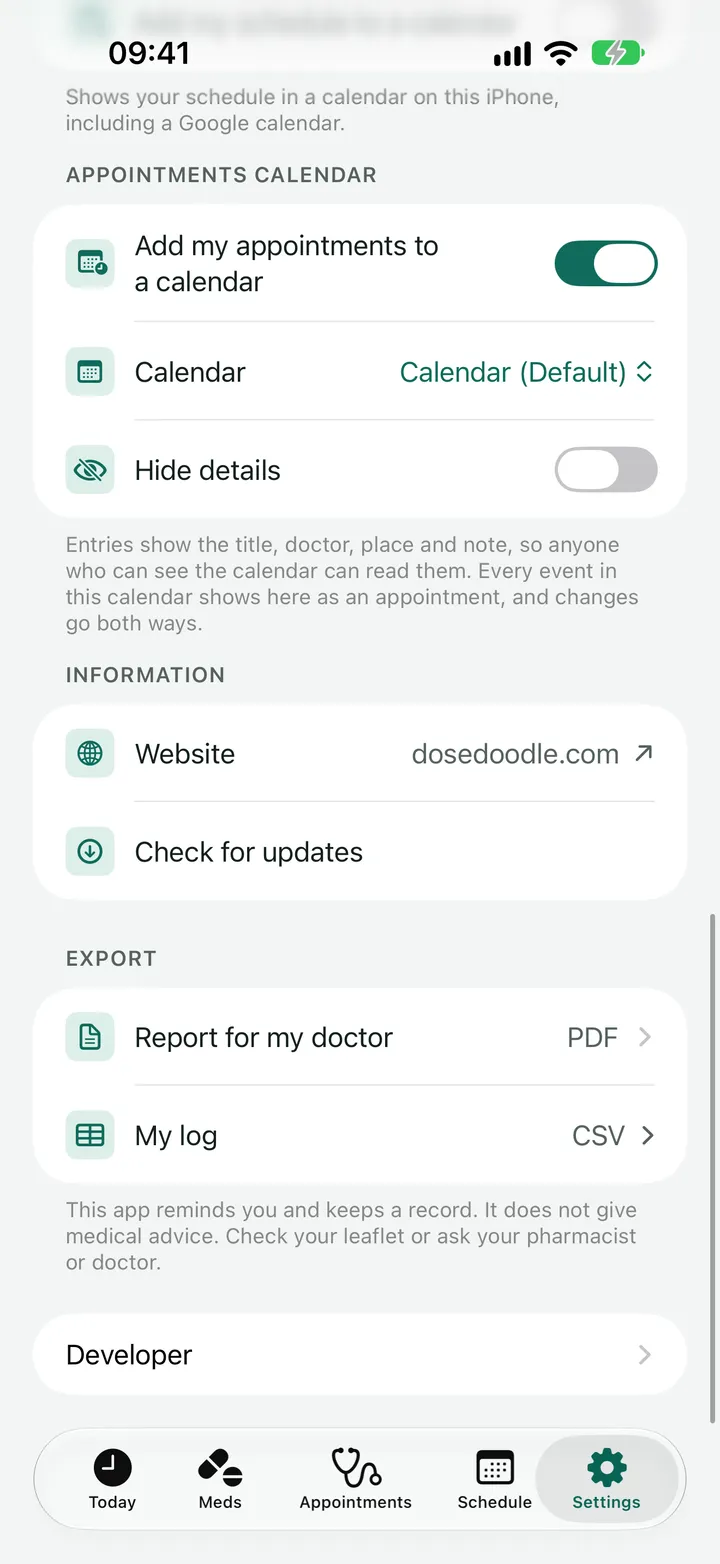
Go to Settings and find Appointments calendar.
This is separate from Dose calendar above it, which shows your medicine schedule.
-
Turn on Add my appointments to a calendar.
Your iPhone asks whether DoseDoodle may use your calendars. If you said no earlier, tap Open Settings to change that.
-
Answer the question about who can see the calendar.
Appointments show their title, doctor, place and note in the calendar, so anyone who can see that calendar can see them, such as everyone a shared Google calendar is shared with. Choose Show details, or Hide details to keep the calendar to just "Appointment" and the time. You can change it later with the Hide details switch under the calendar.
-
Choose a calendar made for appointments.
No calendar is chosen for you. DoseDoodle shows every event in the calendar you choose as an appointment, so pick one just for appointments, not your main calendar. It reads no other calendar.
What happens next
- Your appointments appear in the calendar. Reminders still come from DoseDoodle, so the calendar entries have no alerts of their own.
- An event you add in the calendar appears in DoseDoodle as an appointment of yours, marked From your calendar. DoseDoodle picks its type from the words in the title, or the place if the title says nothing: "MRI" gets the Scan icon, "Dentist" the Dentist icon, "Physio" the Physio icon and so on. If no word fits, the type is Other. You can change the type and move it to another profile. This guess is made on your iPhone, and nothing is sent anywhere.
- If you move or rename an appointment in the calendar, DoseDoodle follows. If both places were changed, the calendar wins, because it may have been changed by someone else.
- A change made somewhere else, such as in Google Calendar on a computer, reaches DoseDoodle once your iPhone has fetched it, which can take a while. DoseDoodle asks your iPhone to fetch the calendar each time you open the app, and again if you pull down on Today, Appointments or Schedule. Your iPhone decides when to act on that, so a change made in the last few minutes can still take a few more to arrive.
- An event that repeats shows once for each date, marked Repeats in your calendar. Change those in the Calendar app. You can still choose the type, doctor and reminders in DoseDoodle.
- With Hide details on, only the date and time come back from the calendar, and an event of your own keeps its title, place and note as you wrote them.
If an appointment is deleted in the calendar
It is deleted in DoseDoodle as well, once your iPhone has fetched the change, with no warning and nothing to confirm. Its reminders go with it. If you deleted it by mistake, add it again in DoseDoodle or in the calendar.
Deleting an appointment that is in your calendar
For an appointment that came from your calendar, DoseDoodle asks what you mean. Delete from the calendar too removes it in both places. Just hide it here stops it showing in DoseDoodle and leaves the calendar as it is, and it is not brought back. To see hidden events again, go to Settings, Appointments calendar and tap Show hidden events again. An appointment you made in DoseDoodle is simply removed from the calendar when you delete it.
Turning it off
Turn the switch off and the entries DoseDoodle added are removed from the calendar. Your appointments stay in the app, and so do any that came in from the calendar.
Good to know
- Appointments stay on your iPhone, like everything else in DoseDoodle. See the privacy policy.
- Appointments are not in the widgets or Siri yet.
- DoseDoodle does not give medical advice or say how to prepare for a scan or test. Follow what your clinic tells you.
Next
Still stuck?
Write to support@dosedoodle.com and I'll help.
DoseDoodle is a reminder and record-keeping tool. It does not give medical advice. Always follow what the doctor, pharmacist or vet has said, and read the leaflet that comes with the medicine.